Advertisement

Home › Tech

10 USB-C and Thunderbolt docks for two monitors

By the PickWise team · Updated November 2026 · 10 min read

Second screen staying black? We compared USB-C, Thunderbolt and DisplayLink docks that run two monitors from one cable, for Mac and Windows laptops.

The 10 at a glance

#DockConnectionVideo2 screens on M1/M2 Air
1CalDigit TS5 PlusBest overallThunderbolt 5NativeNo
2Anker Prime TB5 Docking StationBest for standard cablesThunderbolt 5NativeNo
3Plugable TBT-UDH2Best dual HDMIThunderbolt 5NativeNo
4CalDigit TS4Best Thunderbolt 4Thunderbolt 4NativeNo
5Kensington SD5780TBest value Thunderbolt 4Thunderbolt 4NativeNo
6Anker Prime Docking Station (DL7400)Best for MacBook AirUSB-CDisplayLinkYes, with app
7Plugable UD-6950PDHBest value DisplayLinkUSB-CDisplayLinkYes, with app
8OWC Thunderbolt Go DockBest with no power brickThunderbolt 4NativeNo
9UGREEN Revodok Pro 7-in-1Best budget for WindowsUSB-CMSTNo, mirrors
10Anker 553 USB-C Hub (8-in-1)Best cheap hubUSB-CMSTNo, mirrors
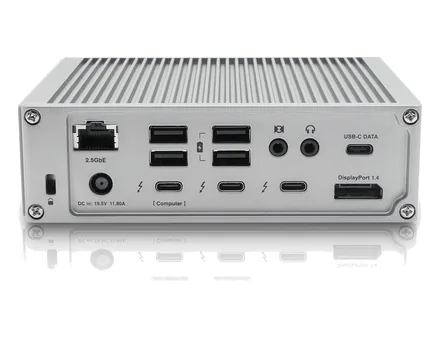
CalDigit TS5 Plus1

Best overall

CalDigit TS5 Plus

Connection: Thunderbolt 5Video: Native2 screens on M1/M2 Air: No

Suits: Power users who want the most ports, fast networking and charging for a big laptop.

Good to know: It has 20 ports, 10Gb Ethernet and 140W laptop charging, and runs silently with no fan.

Pros

  • 20 ports, including 10Gb Ethernet
  • 140W laptop charging
  • Silent, with no fan

Cons

  • Expensive
  • You may need Thunderbolt or DisplayPort cables for screens
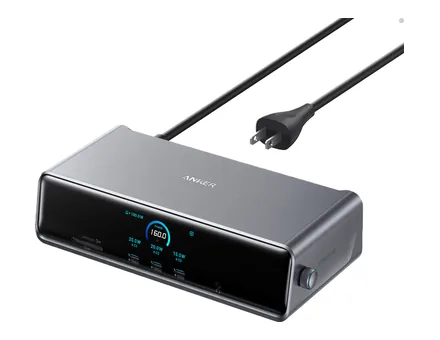
Anker Prime TB5 Docking Station2

Best for standard cables

Anker Prime TB5 Docking Station

Connection: Thunderbolt 5Video: Native2 screens on M1/M2 Air: No

Suits: People who want to plug monitors in with standard HDMI or DisplayPort cables.

Good to know: It has 14 ports and 140W charging. Anker says it doesn't support Thunderbolt 3 laptops, and some USB4 laptops may not run two screens.

Pros

  • Standard HDMI and DisplayPort outputs
  • 140W charging
  • No drivers needed

Cons

  • Not for Thunderbolt 3 laptops
  • Some USB4 laptops can't run two screens
Plugable TBT-UDH23

Best dual HDMI

Plugable TBT-UDH2

Connection: Thunderbolt 5Video: Native2 screens on M1/M2 Air: No

Suits: Anyone with two HDMI monitors who wants to skip adapters.

Good to know: It has two HDMI 2.1 ports and up to 140W laptop charging.

Pros

  • Two HDMI 2.1 ports
  • Up to 140W charging
  • No adapters needed

Cons

  • Premium price
  • Fewer ports than the CalDigit
CalDigit TS44

Best Thunderbolt 4

CalDigit TS4

Connection: Thunderbolt 4Video: Native2 screens on M1/M2 Air: No

Suits: People with a Thunderbolt 4 laptop who want a proven, port-packed dock.

Good to know: It has 18 ports, 98W charging and 2.5Gb Ethernet.

Pros

  • 18 ports
  • 98W charging
  • Long track record

Cons

  • Slower than Thunderbolt 5
  • Pricey for Thunderbolt 4
Kensington SD5780T5

Best value Thunderbolt 4

Kensington SD5780T

Connection: Thunderbolt 4Video: Native2 screens on M1/M2 Air: No

Suits: Office and home workers who want a Thunderbolt dock without a premium price.

Good to know: A value-focused Thunderbolt 4 dock from a long-running business brand.

Pros

  • Lower price for Thunderbolt 4
  • Business-grade build
  • Good port mix

Cons

  • Fewer premium extras
  • Check charging is enough for your laptop
Anker Prime Docking Station (DL7400)6

Best for MacBook Air

Anker Prime Docking Station (DL7400)

Connection: USB-CVideo: DisplayLink2 screens on M1/M2 Air: Yes, with app

Suits: MacBook Air owners whose laptop only supports one screen on its own.

Good to know: It uses DisplayLink to get around Apple's display limits and can run up to three monitors.

Pros

  • Runs two or three screens on any Mac
  • Lots of ports
  • Strong charging

Cons

  • Needs the DisplayLink app
  • Not ideal for fast-moving video or games
Plugable UD-6950PDH7

Best value DisplayLink

Plugable UD-6950PDH

Connection: USB-CVideo: DisplayLink2 screens on M1/M2 Air: Yes, with app

Suits: People who want two 4K office screens from an M1 or M2 MacBook Air for less.

Good to know: You install the free DisplayLink Manager app to use the second screen.

Pros

  • Two 4K screens on a MacBook Air
  • Good value
  • Works with Windows too

Cons

  • Needs the DisplayLink app
  • Not for gaming
OWC Thunderbolt Go Dock8

Best with no power brick

OWC Thunderbolt Go Dock

Connection: Thunderbolt 4Video: Native2 screens on M1/M2 Air: No

Suits: People who move between desks and hate carrying a separate power brick.

Good to know: The power supply is built into the dock, so there's just one power cable.

Pros

  • Power supply built in
  • Easy to move between desks
  • Thunderbolt 4

Cons

  • Fewer ports than desktop docks
  • Pricey for its size
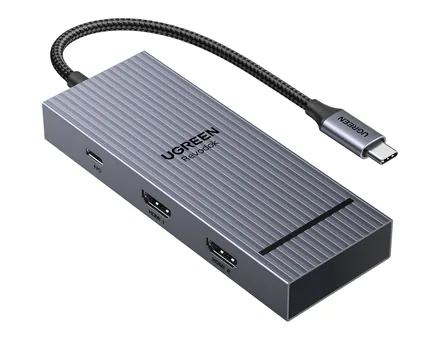
UGREEN Revodok Pro 7-in-19

Best budget for Windows

UGREEN Revodok Pro 7-in-1

Connection: USB-CVideo: MST2 screens on M1/M2 Air: No, mirrors

Suits: Windows laptop users who want two HDMI screens on a small budget.

Good to know: It has two 4K 60Hz HDMI ports and 100W pass-through charging. On a Mac, both screens show the same picture.

Pros

  • Low price
  • Two 4K 60Hz HDMI ports
  • 100W pass-through charging

Cons

  • Mac shows the same picture on both screens
  • Needs a Windows laptop that supports MST
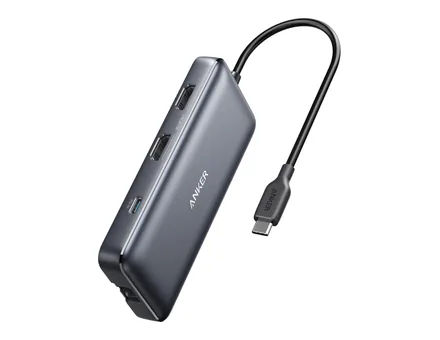
Anker 553 USB-C Hub (8-in-1)10

Best cheap hub

Anker 553 USB-C Hub (8-in-1)

Connection: USB-CVideo: MST2 screens on M1/M2 Air: No, mirrors

Suits: Anyone who needs two HDMI screens and a few extra ports for occasional use.

Good to know: A compact hub with two HDMI ports and up to 85W pass-through charging.

Pros

  • Very low price
  • Compact
  • Two HDMI ports

Cons

  • Mirrors on a Mac
  • Lower charging power

Advertisement

Advertisement

Buying guide

How to choose a dock for two monitors

Six checks that stop the second screen staying black, starting with your laptop.

Which dock type do you need?

Check your laptop maker's display support page to be sure.

M1 or M2 AirOne external screen on its ownDisplayLink
M3 AirTwo screens, lid closedThunderbolt
M4 Air or newerTwo screens, lid openThunderbolt
Windows laptopThunderbolt or USB4 port?TB or MST
01

Check what your laptop can do

Your laptop decides how many screens you can run, not just the dock. Base M1 and M2 MacBook Airs support only one external screen on their own. Newer Macs and most Thunderbolt or USB4 Windows laptops can run two.

02

Pick the right type of dock

Thunderbolt docks use your laptop's own graphics and are best for most people. DisplayLink docks use an app to add extra screens on almost any laptop, including older MacBook Airs. MST docks are cheap but only extend screens on supported Windows laptops.

03

Match your monitor cables

Look at the ports on your monitors. If they use HDMI, a dock with two HDMI ports saves you buying adapters. Some premium docks only have Thunderbolt ports, so you'll need the right cables.

04

Check resolution and refresh rate

Two 4K screens at 60Hz is fine for office work on most docks. If you want higher refresh rates or 6K and 8K screens, check the dock and laptop support that exact setup.

05

Make sure it can charge your laptop

Small laptops often need 65W, while bigger ones need 90W to 140W. If the dock can't supply enough, your battery may drain while you work.

06

Buy for the ports you'll use

Count what you plug in every day, such as Ethernet, USB-A devices, an SD card reader and audio. A smaller, cheaper dock is fine if it covers those.

Frequently asked questions

Why does my second monitor stay black?

Usually because your laptop doesn't support two external screens through that dock. Base M1 and M2 MacBook Airs only support one, and cheap MST hubs only mirror on a Mac.

Can a MacBook Air run two monitors?

M1 and M2 models need a DisplayLink dock. M3 models can run two with the lid closed, and M4 models and later can run two with the lid open.

What is DisplayLink?

It's technology that adds extra screens through software and a special chip in the dock. You install a free app. It's great for office work but less smooth for games and fast video.

What's the difference between Thunderbolt 4 and Thunderbolt 5?

Thunderbolt 5 has much more bandwidth, so it handles higher-resolution screens and faster storage. For two 4K office screens, Thunderbolt 4 is usually enough.

Will a USB-C dock work with any laptop?

Most USB-C docks work for charging and USB ports, but video support varies. Check your laptop supports video over USB-C, Thunderbolt or USB4.

Do I need a dock or a hub?

A hub is smaller and usually powered by your laptop. A dock has its own power supply, more ports and charges your laptop. For two monitors at a desk, a dock is usually better.

Bonus download

Get the dock compatibility worksheet

  • All 10 docks side by side
  • Which dock type your laptop needs
  • A compatibility worksheet for your setup
Your PDF downloads straight after the ad

More lists