Advertisement

Home › Work

10 home office upgrades that make working from home easier

By the PickWise team · Updated November 2026 · 10 min read

From your chair and desk to your webcam and lighting, these are the upgrades that make the biggest difference to comfort, focus and video calls.

The 10 at a glance

#UpgradeTypeGood for
1Steelcase Series 2Best chair overallErgonomic chairAll-day sitting
2FlexiSpot E7 ProBest standing deskSit-stand deskSwitching positions
3Dell S2725QCBest monitor upgrade27-inch 4K monitorSharp text, one cable
4Logitech Brio 500Best webcam for calls1080p webcamVideo calls
5Sony WH-1000XM6Best for a noisy houseNoise-cancelling headphonesFocus and calls
6Logitech MX Keys S + MX Master 3SBest keyboard and mouseWireless keyboard and mouseLong typing days
7Ergotron LXBest monitor armMonitor armScreen height
8BenQ ScreenBar Halo 2Best desk lightingMonitor light barLate finishes
9CalDigit TS4Best one-cable setupDocking stationLaptop users
10Sihoo M57Best budget chairBudget ergonomic chairTight budgets
Steelcase Series 21

Best chair overall

Steelcase Series 2

Type: Ergonomic chairGood for: All-day sitting

Suits: People who sit for long stretches and want adjustable lumbar support and a backrest that moves with them.

Pros

  • Backrest flexes and moves with you
  • Adjustable lumbar support
  • Seat, arms and recline all adjust

Cons

  • Costs more than budget chairs
  • Fit is personal, so try one if you can
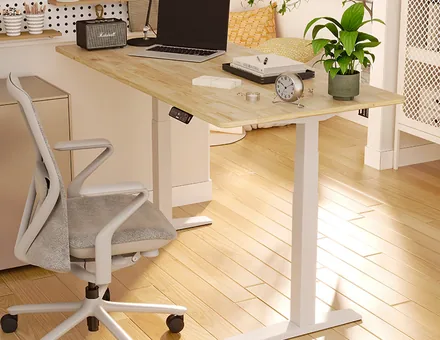
FlexiSpot E7 Pro2

Best standing desk

FlexiSpot E7 Pro

Type: Sit-stand deskGood for: Switching positions

Suits: Anyone who wants to switch between sitting and standing at the push of a button, with tidy cable management.

Pros

  • Smooth, quiet electric height adjustment
  • Memory presets for sitting and standing
  • Stable even at standing height

Cons

  • Heavy, and takes time to assemble
  • Needs space for the frame and cables
Dell S2725QC3

Best monitor upgrade

Dell S2725QC

Type: 27-inch 4K monitorGood for: Sharp text, one cable

Suits: Laptop users who want a bigger, sharper screen they can connect with a single USB-C cable.

Pros

  • Sharp 4K text on a 27-inch screen
  • One USB-C cable for video, data and charging
  • Clean, simple design

Cons

  • Basic stand with limited adjustment
  • Its 65W charging may not be enough for bigger laptops
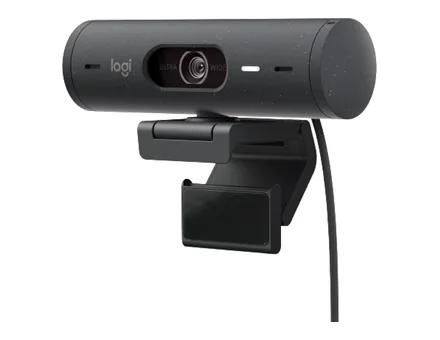
Logitech Brio 5004

Best webcam for calls

Logitech Brio 500

Type: 1080p webcamGood for: Video calls

Suits: People on daily video calls whose lighting changes through the day, from window glare to evening calls.

Pros

  • Clear 1080p video
  • Adjusts automatically to tricky lighting
  • Built-in privacy shutter

Cons

  • Not 4K
  • Won't fix a badly lit room on its own
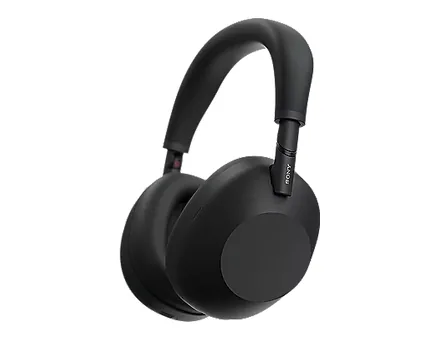
Sony WH-1000XM65

Best for a noisy house

Sony WH-1000XM6

Type: Noise-cancelling headphonesGood for: Focus and calls

Suits: Anyone working around family, pets or street noise who needs quiet to focus.

Pros

  • Very strong noise cancelling
  • Comfortable for long days
  • Good microphones for calls

Cons

  • Premium price
  • Not designed for workouts
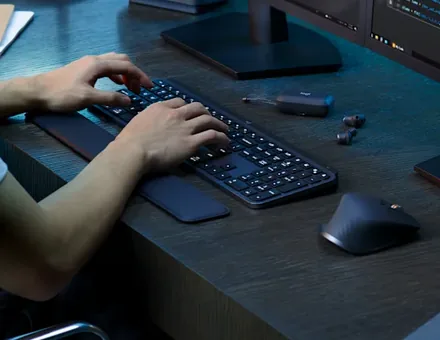
Logitech MX Keys S + MX Master 3S6

Best keyboard and mouse

Logitech MX Keys S + MX Master 3S

Type: Wireless keyboard and mouseGood for: Long typing days

Suits: People who type all day and want comfortable keys and a precise, quiet mouse.

Pros

  • Comfortable, quiet, backlit keys
  • Precise mouse with a fast scroll wheel
  • Switch between several devices

Cons

  • Pricey as a pair
  • The mouse is right-handed only
Ergotron LX7

Best monitor arm

Ergotron LX

Type: Monitor armGood for: Screen height

Suits: Getting your screen to eye level and freeing up desk space.

Pros

  • Gets your screen to the right height
  • Frees up desk space
  • Smooth movement in any direction

Cons

  • Needs a clamp or a hole in the desk
  • Check your monitor's weight and mount first
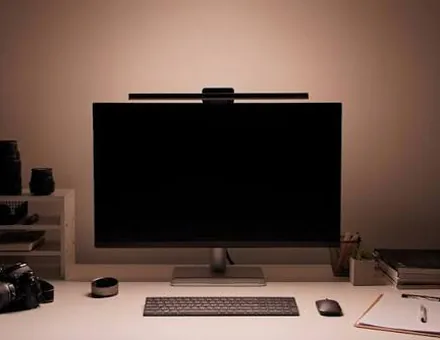
BenQ ScreenBar Halo 28

Best desk lighting

BenQ ScreenBar Halo 2

Type: Monitor light barGood for: Late finishes

Suits: Lighting your desk without glare on the screen, especially for evening work.

Pros

  • Lights the desk without screen glare
  • Takes up no desk space
  • Brightness and warmth adjust

Cons

  • Pricey for a light
  • Lights the desk, not the whole room
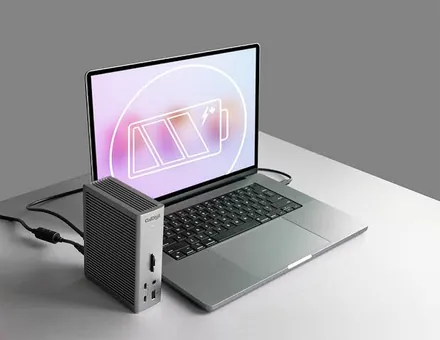
CalDigit TS49

Best one-cable setup

CalDigit TS4

Type: Docking stationGood for: Laptop users

Suits: Connecting monitors, network, storage and charging to a laptop with one cable.

Pros

  • One cable for charging, screens and network
  • Lots of ports
  • Tidier desk

Cons

  • Expensive
  • Check your laptop supports Thunderbolt for every feature
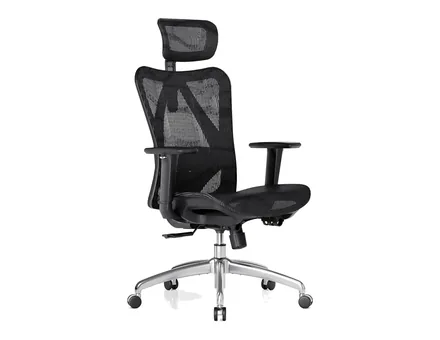
Sihoo M5710

Best budget chair

Sihoo M57

Type: Budget ergonomic chairGood for: Tight budgets

Suits: People who want proper back support without paying premium chair prices.

Pros

  • Affordable
  • Headrest and adjustable lumbar support
  • Breathable mesh

Cons

  • Fewer adjustments than premium chairs
  • The mesh seat can feel firm on long days

Advertisement

Advertisement

Buying guide

How to set up a better home office

Six upgrades in the order we'd make them, starting with the ones you'll feel every day.

Quick setup guide

General guidance. Adjust for your body and what feels comfortable.

Screen heightTop edge of the screenEye level
Screen distanceFrom your eyesArm's length
ElbowsWhile you typeAbout 90°
BreaksStand up and moveEvery hour
01

Start with your chair

You sit in it all day, so it makes the biggest difference. Look for adjustable seat height, lower back support and armrests that let your shoulders relax. A good chair should feel supportive, not just soft.

02

Get your screen to eye level

A screen that's too low makes you hunch. Raise it so the top edge is at or just below eye level, about an arm's length away. On a laptop, use a stand or monitor and a separate keyboard and mouse.

03

Sort out your lighting

Avoid a bright window directly behind or in front of your screen. A monitor light bar lights your desk without glare, and facing a window or light on video calls makes you look much better on camera.

04

Deal with noise and calls

Noise-cancelling headphones help you focus in a busy house, and a decent webcam and microphone make calls clearer. These are worth it if you spend a lot of the day on calls.

05

Simplify the tech

A dock or single-cable monitor means you plug in one cable and you're ready to work. It saves time every morning and keeps cables off the desk.

06

Upgrade in stages

You don't need everything at once. Start with the chair and screen height, then add lighting, sound and tech as your budget allows. Budget options like the Sihoo M57 are a good stop-gap.

Frequently asked questions

What's the most important home office upgrade?

For most people it's the chair, followed by getting the screen to eye level. Together they make the biggest difference to comfort over a working day.

How high should my monitor be?

The top of the screen should be at or slightly below eye level, roughly an arm's length away, so you can look straight ahead without tilting your head.

Is a standing desk worth it?

It can be, if you'll actually use it. The benefit comes from changing position through the day, not from standing all day.

What webcam resolution do I need?

1080p is plenty for most video calls. Good lighting usually makes a bigger difference than a higher resolution.

Do I need a docking station?

Only if you plug a laptop into several things, such as monitors, a network cable and storage. A single-cable USB-C monitor can be enough for simpler setups.

How much should I spend on an office chair?

Budget chairs can be fine for lighter use, but if you sit for most of the day, a well-made ergonomic chair is usually worth the extra and lasts for years.

Bonus download

Get the home office setup checklist

  • All 10 upgrades and what each one is for
  • A simple desk, chair and screen setup guide
  • A checklist for a better home office
Your PDF downloads straight after the ad

More lists